Upload your data
There are 6 options to upload data:- Upload from computer
- Upload from CSV
- Upload from a previous project
- Upload from AWS S3
- Upload from Google Cloud Storage
- Upload from Microsoft Azure
Option 1: Upload from Computer
Select files from your computer to upload. For faster uploading, consider the other options that allow for async uploading. Please upload no more than 1000 files at one time.Option 2: Upload from CSV
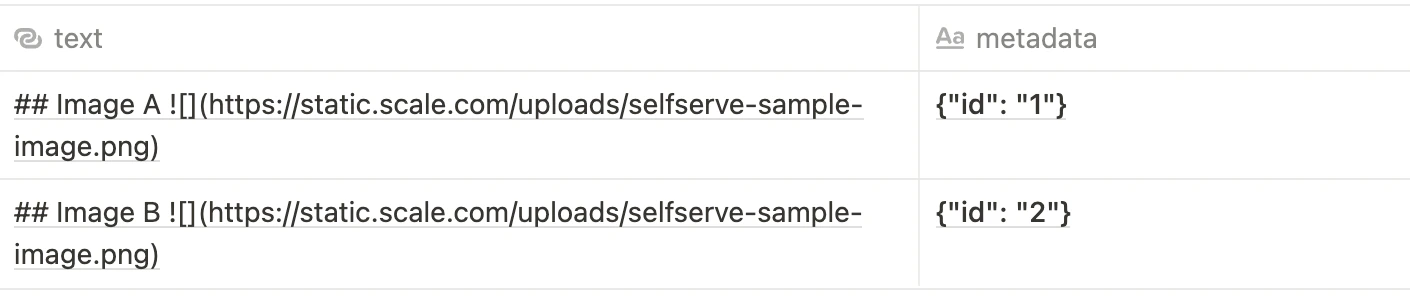
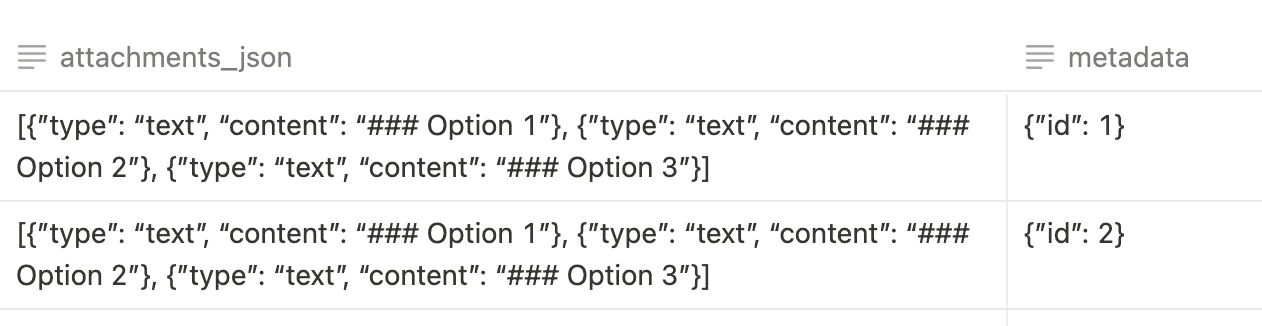
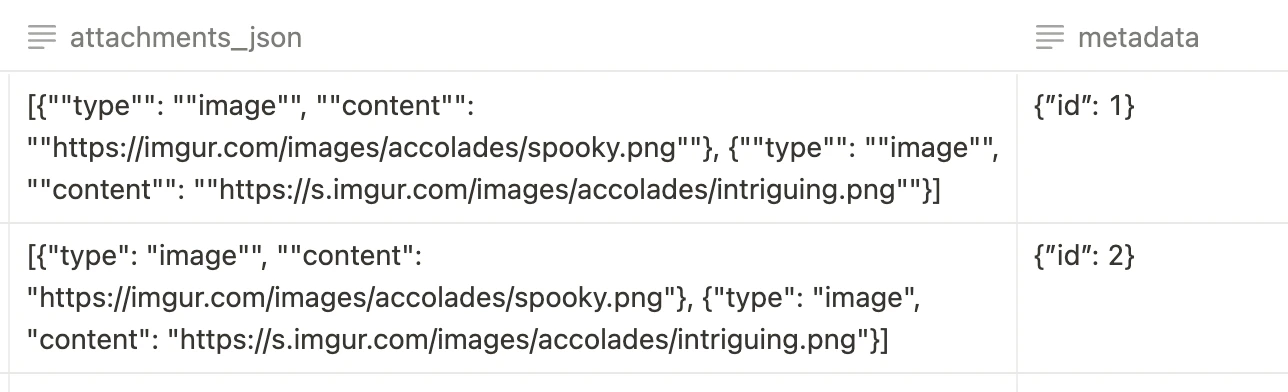
To upload from a local CSV file, you need to include either a column named “attachment_url” or a column named “text”. “attachment_url” columns should be the data’s publicly accessible remote urls. “attachment_url”s will be used to fetch the data from that url for a website or file. For websites, the url will be displayed as a link for taskers to open. The values in the “text” column can be used for raw text or markdown for text-based projects (API task type: textcollection). We recommend also adding some step-by-step instructions as part of the markdown. You can use our Task Interface Customization tool to help format and generate this column. Another feature is that we support iframes as input in the “text” column. You can add an iframe to a native app that taskers use to interact with. You can additionally provide an optional “metadata” column to store extra data in JSON. If there are more than 200 assets in the upload, we will upload in the background. CSV file with metadataDownload Sample CSV

Download Sample CSV

Download Sample CSV

Download Sample CSV
Download Sample CSV
Option 3: Upload from a Previous Project
Import data from a previous rapid project.Option 4: Upload from AWS S3
Provide a S3 bucket and an optional prefix (folder path) and we will import the data directly. Note that you need to give us permission to do so. Check this document for instructions on setting up the permissions. You will need to grant permissions for ‘GetObject’ and ‘ListBucket’ actions. Additionally, AWS uploads are capped at 5,000 files. We have also included instruction videos for setting up IAM delegated access. [insert video] Creating role and corresponding policy. You can see which values to input for the role on the Scale integrations page. You can also specify which resources to use with more granularity. [insert video] Assigning the read-only policy to the Scale integration role.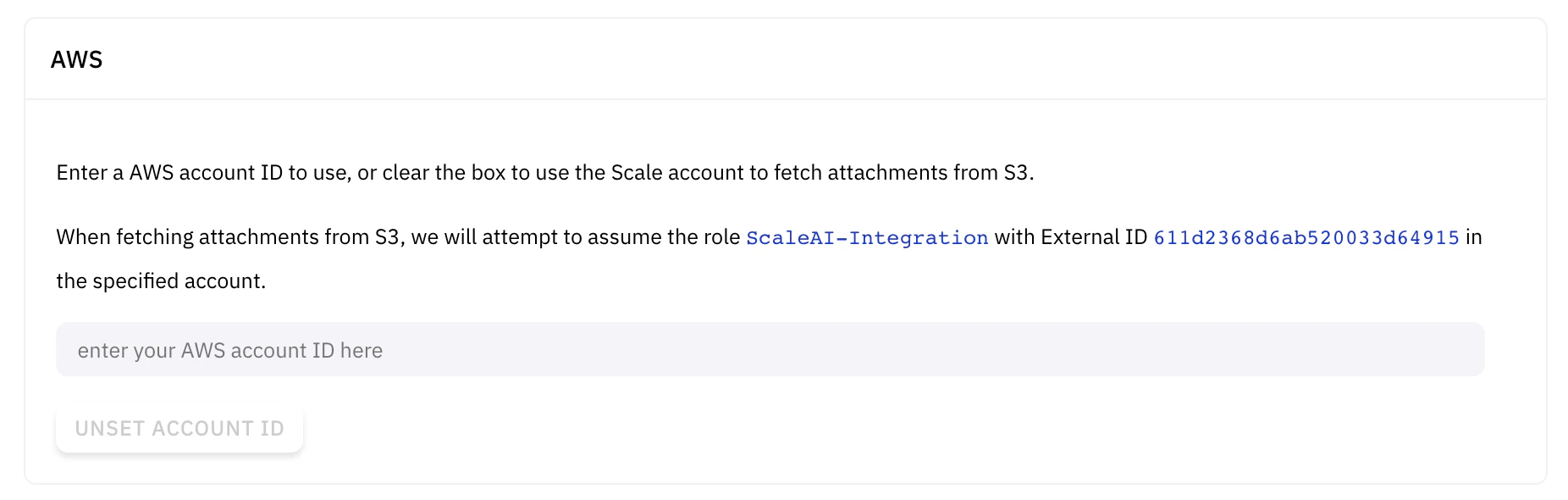
Option 5: Upload from Google Cloud Storage
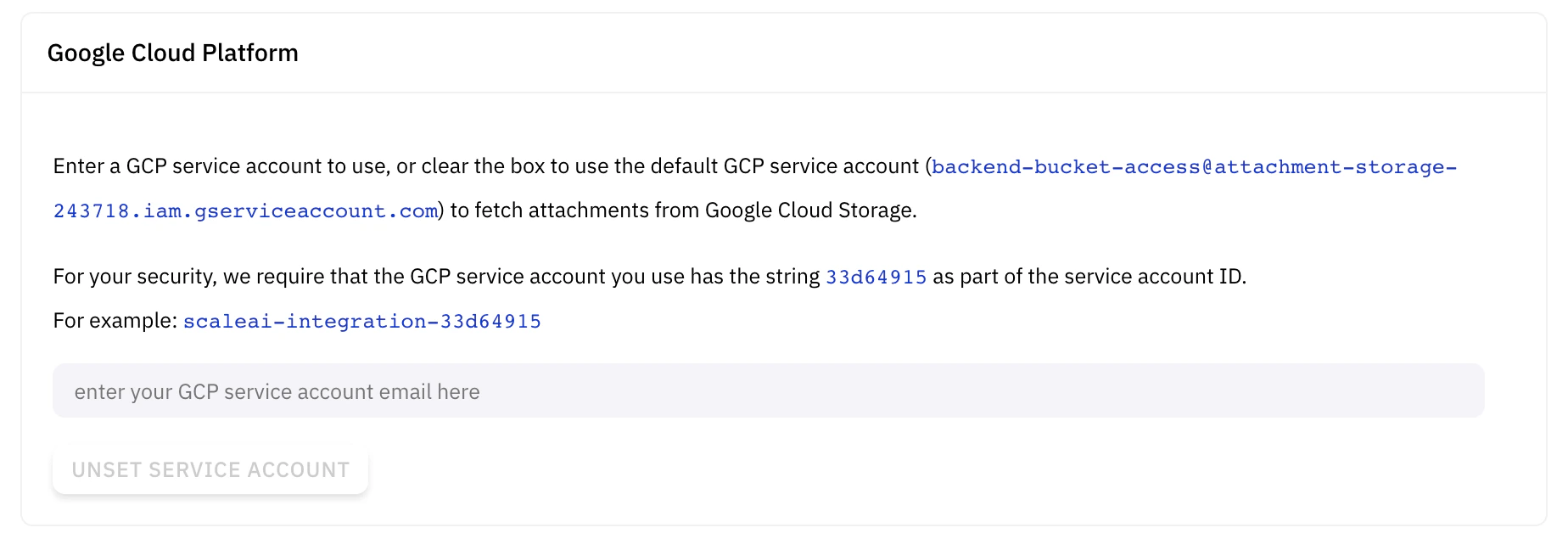
Provide a Google Cloud Storage bucket and an optional file prefix / delimiter and we will import the data directly. Note that you need to give us permission to do so. Check this document for instructions on setting up the permissions. You will need to setup permissions forStorage Legacy Bucket Reader or Storage Bucket Data Reader. Please ensure the bucket does not contain both files and folders.
We have also included instruction videos for setting up service account impersonation.
[insert video]
Adding a service account. Replace {uuid} with the value given to you on the Scale integrations page..
[insert video]
Adding bucket permissions for the service account.